Stop and start traffic light
A matte black traffic light turns from red to green: your “stop” line glows pink, then your “start” line lands in green.
Comparisons4–6 s16:9, 9:16, 1:1Build with Remotion, HyperFrames or HTML
Your prompt
Your prompt is ready
Leave your email to see it and copy it. Free during launch.
Paste it into Claude (Claude Code works best). It builds the scene and shows you 3 still frames before rendering. How to use it
About this animation
Plenty of videos turn on a single shift: quit one habit, adopt a better one. This scene gives that shift a symbol everyone reads in a split second. A realistic matte black traffic light, with hooded visors, ribbed lenses, a cylindrical cap and bracket arms reaching in from the side, rises out of the dark. The red lamp blooms and tints the housing, and your first line slides in word by word above it: an elegant italic half, then a semibold geometric half, both in salmon pink, tied to the light by a hand-drawn dotted curve. Then the red dies down, the green comes up, and your second line arrives in pale green under the light while a dotted stroke drops from the housing and loops around it like a lasso.
The timing is not a generic tween: every key and easing curve comes from a professional After Effects edit, frame for frame, from the rise of the light to the last dotted loop. The lamps bathe the casing, the words and the black background in a soft red, then green, glow, a fixed light band catches the words as they slide through it, and a faint pattern of fine concentric lines sits behind everything. The prompt hands Claude the working code, already filled with your words, so building it in Remotion, HyperFrames or plain HTML takes minutes.
Scene timeline
Second by second, with the example content. Timing adapts to your text.
- 0.0 s
The traffic light rises
The scene cuts in while the light is already rising from the bottom of the frame on a slow-fast-slow curve, shrinking from 102 to 91.5 percent of its size. Its red lamp brightens for one second and its glow spreads onto the casing and the background.
- 0.0 s
The stop line, word by word
Each word slides 100 pixels in from the right as it fades in, one after the other, until the whole line is in at about 1.7 seconds. A light band stays fixed across the phrase, so the words light up as they pass through it.
- 0.43 s
A dotted curve reaches toward the light
A thin gray dotted line with a soft glow draws itself in 1.2 seconds, from the start of the phrase down toward the cap of the traffic light.
- 0.6 s
Everything glides up
While the light is still rising, the light, the phrase and the dotted line move up together by 376 pixels over 2.8 seconds, so the rise and the glide read as one continuous move.
- 1.37 s
Red to green
The stop line and its curve fade out in 0.7 seconds. From 1.5 seconds the red lamp dims while the green lamp blooms, a 1.3-second cross-fade that turns the whole glow from red to green.
- 1.9 s
The start line and its lasso
Under the light, the second line comes in the same way, word by word from the right, in pale green. A dotted stroke drops from the light, joins an ellipse and runs around the phrase in 1.8 seconds. The final push toward the lamps begins at 3 seconds, and the scene holds on the full green phrase from 3.7 seconds.
Frames from the scene
Entrance, middle and final hold, with the example content.
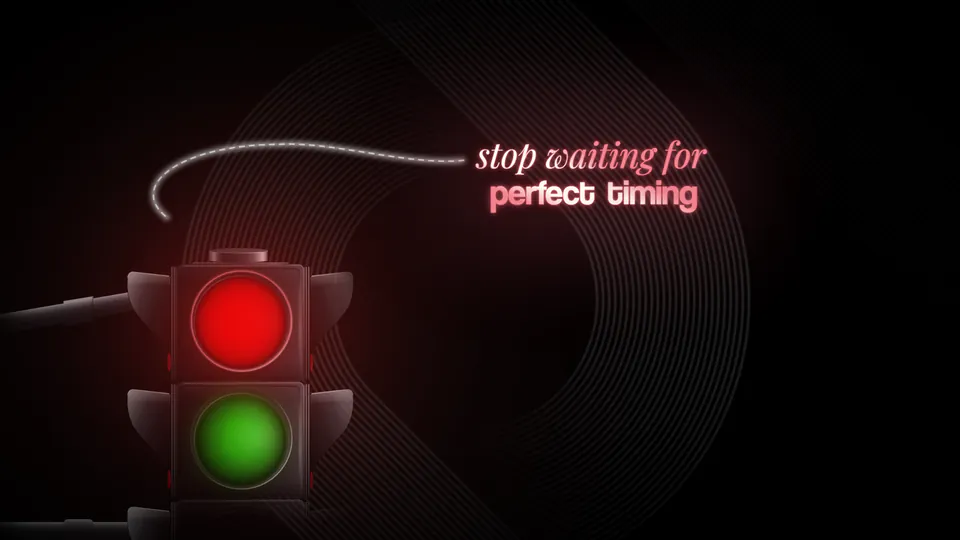
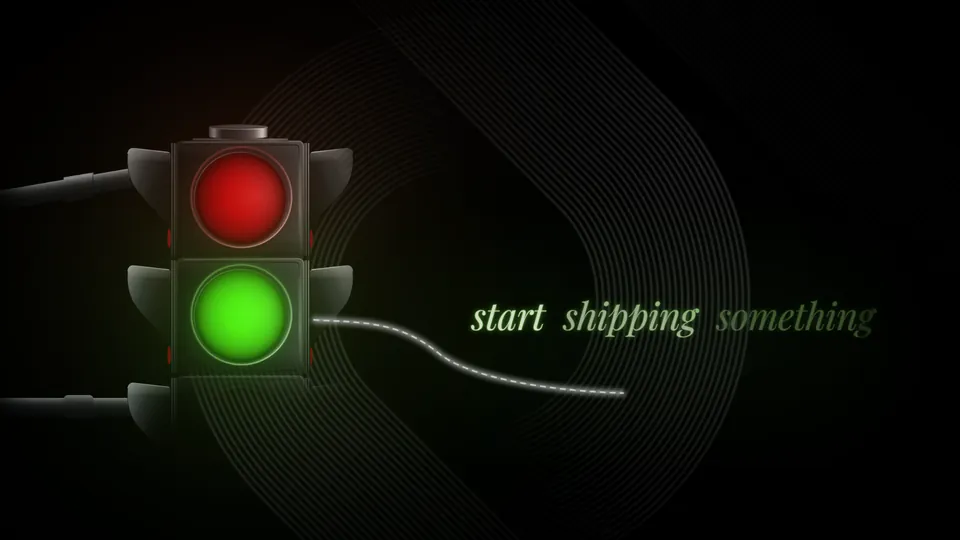
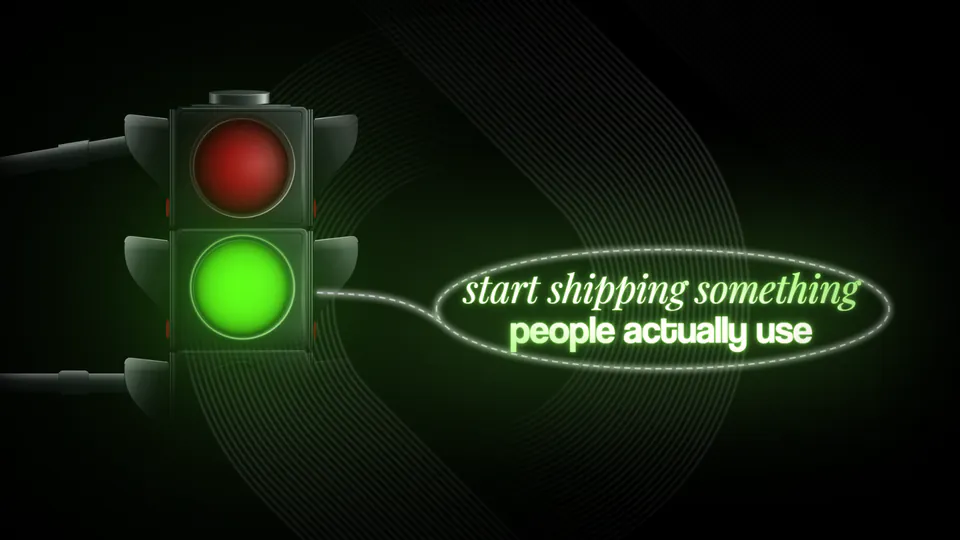
What you can customize
- Stop line
- Two fields, up to 48 characters each: an italic part (“stop waiting for”) set in a serif and a bold part (“perfect timing”) set in a semibold geometric sans, both in salmon pink. Leave either one empty for a one-line phrase.
- Start line
- The same two parts for the green phrase under the light. The dotted ellipse is drawn around whatever you type, so a single word gets a small oval loop and a long sentence gets a wide one.
- Long text
- A part that is much too wide breaks onto two balanced lines; anything that still does not fit shrinks evenly, so the text never leaves the frame or covers the light.
- Format
- Landscape 1920 × 1080 by default, with the light on the left and both lines to its right. Vertical 9:16 is the original layout, and 1:1 keeps the stop line above the light and the start line below.
- Build with
- Remotion, HyperFrames or a single HTML file. The code is the same in all three, so the timing never drifts.
- Anything else
- A free note added to the prompt, for example a soft click when the light switches, a different pink or green, or your own fonts.
Best for
Mindset and self-improvement Shorts
Pair the habit to drop with the one to build, “stop scrolling at night” then “start reading ten pages”, at the exact moment your voice-over makes the turn.
Business and creator advice
Contrast the common mistake with the better strategy, such as “stop chasing every trend” then “start owning one niche”, as the hinge of a talking-head video.
Before and after a decision
Mark the point where a story changes direction: what someone quit, then what they started instead. The light from red to green says it before the words finish.
How to use it
Customize
Change the text, the color, the format and the tool in the panel above. The live preview follows as you type.
Unlock
Leave your email once to reveal the full prompt and copy it. It is free during launch.
Paste into Claude Code
Start Claude Code in a project folder (npx create-video for Remotion, npx hyperframes init for HyperFrames, any empty folder for plain HTML) and paste the prompt. Claude writes the scene with your content.
Check the 3 frames
Before any render, Claude shows you three still frames: the end of the entrance, the middle of the hold and the moment just before the exit. Ask for fixes until they match the preview.
Render
Approve and let Claude render the video: an MP4 to upload, or a transparent WebM or ProRes 4444 file for your editor. A plain HTML scene is captured frame by frame with a headless browser and FFmpeg.
Pro tips
- Start the first line with the verb the light stands for: “stop” in the pink line and “start” in the green line make the metaphor land instantly, even with the sound off.
- Put the quiet, setup words in the italic part and the punch in the bold part, as in “stop waiting for” / “perfect timing”; the bold half reads first at a glance.
- Say the stop phrase while the red lamp is lit, in the first 1.5 seconds, and the start phrase as the green blooms. Cut to your next shot on the final hold.
- Use it once, at the turning point of the video. As a recurring transition it loses the surprise of the switch from red to green.
Questions
Why does the prompt contain code?
Because the traffic light, its glows and the timing are far too detailed to rebuild from a description. The prompt gives Claude the working scene with your text already in it, so it only has to set it up in your tool.
Which fonts does it use?
The fonts of the original edit: Playfair Display Italic for the italic parts and Coolvetica for the plain parts. The code loads both from motionpromptsai.com.
Is the traffic light a photo or a video file?
Neither. The housing, visors, ribs, lenses, cap, bracket arms and every glow are vector shapes and gradients drawn in code, so the scene needs no image file and stays sharp at any size.
Why is there no color setting?
Red for what to stop and green for what to start is the whole idea of the scene. If your brand needs different tints, describe them in the notes field and the prompt will include your request.
More animations
Browse the library