Share button call to action
A black pill button bounces on a film-edge page, then the camera pulls back as the page closes into a card where a green highlighter lands your word.
Calls to action2–6 s16:9, 9:16, 1:1Build with Remotion, HyperFrames or HTML
Your prompt
Your prompt is ready
Leave your email to see it and copy it. Free during launch.
Paste it into Claude (Claude Code works best). It builds the scene and shows you 3 still frames before rendering. How to use it
About this animation
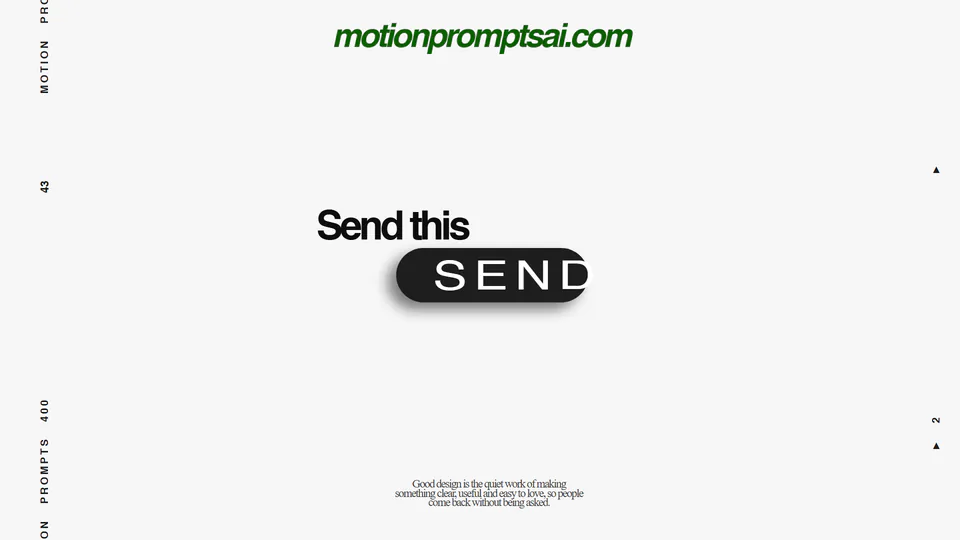
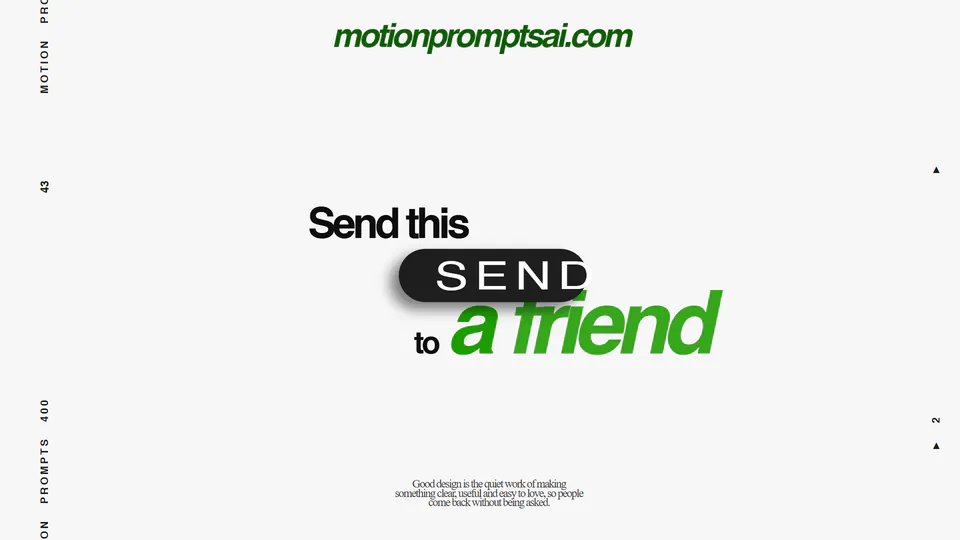
Most calls to action shout. This one looks like a page torn from a photo lab: an off-white sheet with film-edge markings down its sides, your site in green italic at the top and a line of small serif print at the bottom. Your opening line sharpens in word by word, a black pill button presses down and springs back with a little wobble, and the second line lands with its end set huge in green italic, spilling past the edge of the frame.
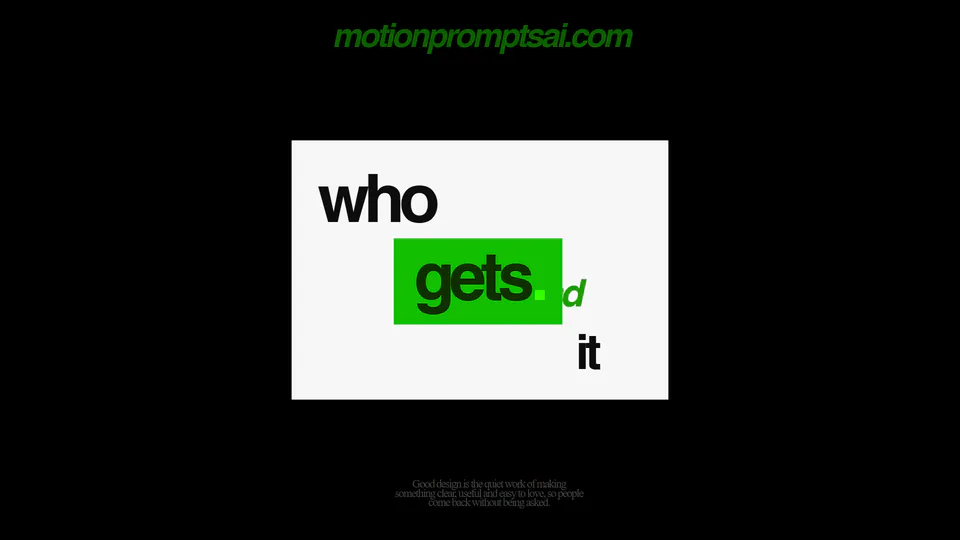
Then the twist. A 3D camera pulls back 1,250 pixels in a third of a second while the page closes into a white card on black, and three short words fill the card: the first one sharpens in, a bright green highlighter grows from the center to reveal the second, and the third drops in last. Every value, from the button bounce and its springy expression to the camera move and the closing card, is copied from a professional After Effects project; the brand marks of the original are replaced.
Scene timeline
Second by second, with the example content. Timing adapts to your text.
- 0.0 s
The page and the opening line
The off-white page is already there, with its film-edge markings, the green site name and the small print. The opening line sharpens in word by word in a third of a second while the camera starts a slow 9 percent push-in.
- 0.03 s
The button presses
The black pill shrinks to 80 percent and back in 0.13 seconds, then wobbles twice around its size, like a real button released under a finger. Its drop shadow falls down and to the left.
- 0.63 s
The second line
The first word arrives small and black, the rest huge in green italic, each word sharpening in within a third of a second.
- 1.03 s
Pull-back into a card
The camera pulls back 1,250 pixels in 0.33 seconds on a very sharp ease while a mask closes the page into a 886 by 610 card on black. The site name and the small print stay where they were, now on black.
- 1.23 s
The punchline
The first word sharpens in on the card, a green highlighter grows from the center in 0.33 seconds and reveals the second word in dark green, with a bright green dot, and the third word appears last at 1.53 seconds.
- 1.93 s
Cut to black
With Transition out, the scene cuts to black exactly where the original edit does. With Hold the last frame, the finished card stays on screen.
Frames from the scene
Entrance, middle and final hold, with the example content.
What you can customize
- Opening line
- Two to four words, read before the button presses, such as “Send this” or “Save this”.
- Button text
- One short word in capitals. Long words run past the pill, which the original does on purpose.
- Second line
- Its first word stays small and black; the rest is set huge in green italic, so keep it to one or two words.
- Punchline
- Three short lines: the second one gets the green highlighter, which grows to fit the word.
- Site or handle
- Shown in green italic at the top, and still visible on black after the page closes.
- Format
- Vertical is the original framing. Landscape and square keep the same scene, slightly smaller, with the page and its film edges filling the frame.
Best for
Ending a Short or a Reel
Ask viewers to send the video to the one person who needs it, the most effective share prompt there is.
Newsletter and community calls
Swap the button for JOIN or SUBSCRIBE and the punchline for the reason to do it.
Editorial and marketing channels
The film-edge page and the serif small print suit channels with a print-magazine look.
How to use it
Customize
Change the text, the color, the format and the tool in the panel above. The live preview follows as you type.
Unlock
Leave your email once to reveal the full prompt and copy it. It is free during launch.
Paste into Claude Code
Start Claude Code in a project folder (npx create-video for Remotion, npx hyperframes init for HyperFrames, any empty folder for plain HTML) and paste the prompt. Claude writes the scene with your content.
Check the 3 frames
Before any render, Claude shows you three still frames: the end of the entrance, the middle of the hold and the moment just before the exit. Ask for fixes until they match the preview.
Render
Approve and let Claude render the video: an MP4 to upload, or a transparent WebM or ProRes 4444 file for your editor. A plain HTML scene is captured frame by frame with a headless browser and FFmpeg.
Pro tips
- Say the opening line as the button presses, in the first half second, and the punchline as the card appears.
- Keep the punchline to three short words so it reads in one glance on the card.
- Put a click sound on the button press at 0.03 seconds and a whoosh on the pull-back at 1.03 seconds.
- Use the cut to black to end your video, or as a hard transition into your outro.
Questions
Which fonts does it use?
Helvetica Bold for the lines, Helvetica Bold Oblique for the green words and Helvetica Regular, widely spaced, for the button, as in the original render; the small print uses Times New Roman.
Can I change the green?
Yes. The Color menu turns the greens to another hue, while the black, white and grays stay the same.
Is the camera move real 3D?
Yes. The punchline sits 1,250 pixels in front of the page, so as the camera pulls back the page shrinks into the card while the punchline arrives at full size.
Why is it under two seconds?
The original edit cuts to black at 1.93 seconds. Choose Hold the last frame to keep the finished card on screen for a 6-second version.
More animations
Browse the library