Giant number chapter card
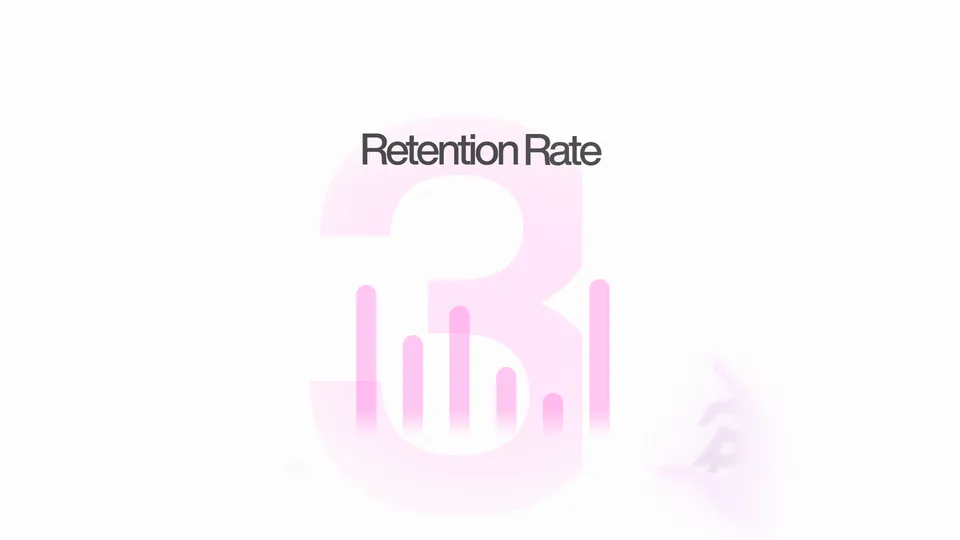
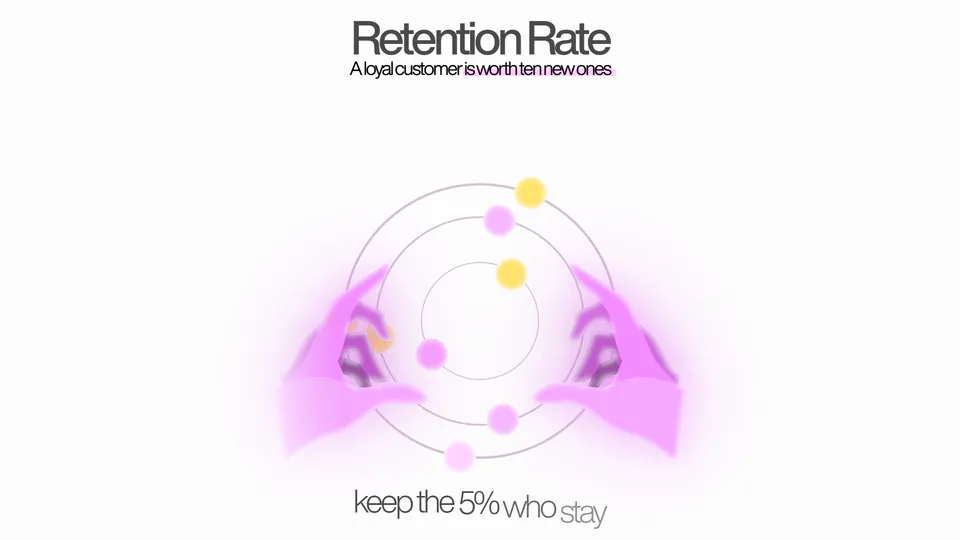
A giant pale pink number and growing bars open the chapter, then two hands cradle turning orbits under your title and takeaway.
Chapter titles6 s16:9, 9:16, 1:1Build with Remotion, HyperFrames or HTML
Your prompt
Your prompt is ready
Leave your email to see it and copy it. Free during launch.
Paste it into Claude (Claude Code works best). It builds the scene and shows you 3 still frames before rendering. How to use it
About this animation
Long videos need clear section breaks, and this one feels like a page from a well designed magazine. A huge chapter number in the palest pink fills the frame behind a tight dark gray title that rises word by word out of a blur, while six rounded pink bars grow upward like a tiny chart. Then the scene turns into a little illustration: two stylized pink hands slide in from the edges, fingers gently swaying, around three thin orbit rings that carry soft glowing spheres. Your subtitle writes itself under the title, a pink highlighter sweeps under its last words, and a closing line settles under the orbits while four spheres turn gold.
Every value comes from the original After Effects project: the keyframes, the cubic-bezier curves, the word-by-word text selectors, the vector paths of the hands and the speed of each ring. The whole card pushes in slowly from the first frame, the title glides to the top in a little over a second, and the rings keep turning at 20, 17 and 25 degrees per second in alternating directions. By default the scene leaves the way the original edit does: everything lifts away while a pink card rises from the bottom and fades to white, ready for your next shot.
Scene timeline
Second by second, with the example content. Timing adapts to your text.
- 0.0 s
The number and the title
The giant number is already in place, softly faded at its edges, and the whole card pushes in from 100 to 108 percent. Retention rises first, sharpening as it climbs 57 pixels; Rate follows half a beat later.
- 0.0 s
Six bars grow
Rounded pink bars rise from a soft fade at the bottom, 0.05 seconds apart and about one second each, to 89, 58, 77, 39, 23 and 100 percent of the tallest.
- 0.87 s
The hands slide in
Two mirrored pink hands slide in from the lower corners and straighten from a ten degree tilt in 1.2 seconds, with a soft glow around them. Each finger keeps swaying back and forth on its own rhythm.
- 0.97 s
The title moves up
The title glides about 270 pixels toward the top in 1.17 seconds. At the same time the number and the bars blur and fade out in a third of a second, and the three orbit rings fade in one after another, each carrying its soft spheres.
- 0.97 s
Subtitle and highlighter
Each word of the subtitle slides in from the right and fades in, one after another. At 1.57 seconds a flat pink band sweeps under the end of the sentence in 0.9 seconds, sitting on the baseline behind the letters.
- 2.97 s
The closing line
Under the orbits, the closing line rises word by word in light gray while the card starts a second slow push-in. From 3.27 seconds four of the nine spheres turn from pink to warm yellow.
- 4.1 s
Transition out
The whole scene lifts and shrinks to 90 percent while the title, the orbits and the hands drift back down, then a pink card rises from the bottom, fades to white and covers the frame at 5.77 seconds. Choose Hold the last frame to stop on the finished card instead.
Frames from the scene
Entrance, middle and final hold, with the example content.

What you can customize
- Chapter number
- One to three characters. A narrow digit keeps the original size and fills nearly the whole height; wider numbers shrink just enough to stay inside the frame.
- Chapter title
- Ideally one or two words. Each word is its own unit in the text animation, and a longer title scales down until it fits on one line.
- Subtitle
- One short sentence. The highlighter always lands under its last few words, so end it with the phrase that matters.
- Closing line
- A short follow-up of three to five words, shown under the orbits at the end of the scene, light and set very tight.
- Format
- Vertical 1080 × 1920 is the original layout. Landscape and square keep the same composition, centered and scaled to fit, with the hands fading in softly from the sides.
- Build with
- Remotion, HyperFrames or a single HTML file: the prompt ships the working code, so the timing is identical in all three.
Best for
Numbered lesson videos
Open each point of a “5 lessons” or “7 mistakes” video with its number, the idea in two words and the one-line takeaway, then cut back to your footage.
Marketing and business explainers
The little chart and the hands holding a system of orbits suit ideas about customers, retention, conversion, pricing or growth, without showing real figures.
Courses and tutorials in modules
Mark the start of every module with the same card: viewers who skip around always know which part they are in and what it covers.
How to use it
Customize
Change the text, the color, the format and the tool in the panel above. The live preview follows as you type.
Unlock
Leave your email once to reveal the full prompt and copy it. It is free during launch.
Paste into Claude Code
Start Claude Code in a project folder (npx create-video for Remotion, npx hyperframes init for HyperFrames, any empty folder for plain HTML) and paste the prompt. Claude writes the scene with your content.
Check the 3 frames
Before any render, Claude shows you three still frames: the end of the entrance, the middle of the hold and the moment just before the exit. Ask for fixes until they match the preview.
Render
Approve and let Claude render the video: an MP4 to upload, or a transparent WebM or ProRes 4444 file for your editor. A plain HTML scene is captured frame by frame with a headless browser and FFmpeg.
Pro tips
- Write the title as a label, not a sentence: two words set this tight read instantly on a phone.
- Put the takeaway at the end of the subtitle, since that is where the pink highlighter lands. Five to eight words is the sweet spot.
- Say the chapter title as it comes into focus, in the first second, the takeaway while the highlighter grows, around 1.5 to 2.5 seconds, and the closing line from 3 seconds.
- Use the same card for every chapter and change only the number and the words. The repetition is what makes a long video feel structured.
Questions
Which fonts does it use?
Helvetica Now Display, served with the code: Medium for the title, Regular for the subtitle, Light for the closing line and Bold for the number, all with very tight letter spacing. You can switch every text to another font from the Font menu.
Are the hands images?
No. They are five vector shapes per hand, drawn in code with a soft white inner glow and a pink halo, so they stay sharp at any size and the fingers can sway.
Can I change the pink?
Yes. The Color menu turns the whole palette, number, bars, hands, spheres and highlighter, to another hue while the grays and the white card stay the same.
How does it end?
By default with the transition of the original edit: the scene lifts away, a pink card rises and fades to white, and the clip cuts on white. Pick Hold the last frame to freeze on the finished card instead.
More animations
Browse the library